
Architecting Collective Understanding
From Fluid Dialogue to Mapped Relationships: Designing Group Synthesis

Several people have asked how the Aha! Mystery Architecture might be used in a collaborative group setting, and it seems we may have gotten it worked out during a Zoom call on Tue, 26.05.26.
The following method employs Google Drive, though I expect there might be alternatives, and it should work with a group all in the same room, or via a Zoom call.
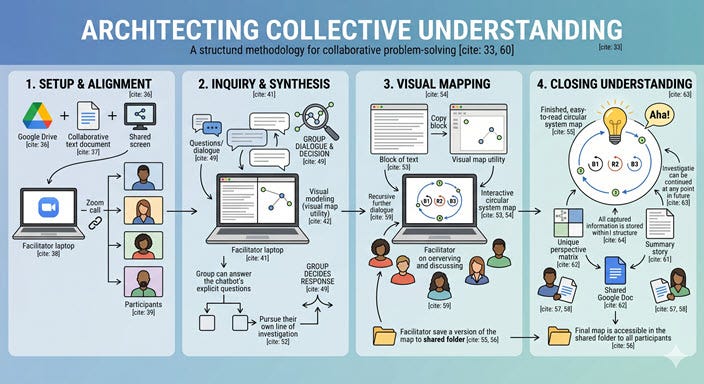
Set Up
Create a folder on Google Drive and set up sharing so anyone with the link has Commenter access.
Create a document in this folder with the same sharing access.
Ensure Google Drive is set up to sync to the laptop of whoever is facilitating the Zoom call.
Start the Zoom call, and give all participants links to the folder and the Google Doc.
Make sure the Downloads folder and the Google Drive folders are open on the facilitator’s laptop.
The facilitator should share their screen with participants.
Operation
Launch Gemini, or your preferred chatbot, in one window, and the Aha! Mystery.html program in another window. Having these side by side will be quite helpful. I really like the recently released Google Chrome split view.
Load the Aha! Mystery.txt prompt and the Detectives Panel.txt prompt.
Enter the topic the group will investigate and press return.
Copy the chatbot's output and paste it into the Google Doc. This will provide the content to all participants who have the document open.
This is meant to accommodate the fact that people process content at different rates, and they can review the output at their own speed.
This seems to work far better than everyone trying to read the facilitator’s screen or having the facilitator read the output to the group.
Have the group discuss the output and decide on the response.
Enter the group's response and repeat this section until you reach a Show Map state.
Note that the group doesn’t have to answer the question posed. The group can pursue whatever line of investigation they choose.
Once the JSON structure is displayed as a result of Show Full Map, or because it gets over anxious and displays the structure anyway, copy the JSON structure and paste it into the Aha! Mystery.html display program.
Rearrange the pieces to make the map easier to read.
The facilitator saves the map to their desktop
As there will be multiple copies saved, it might be good to number the versions.
The facilitator drags the HTML file into the shared folder, giving all participants access to the map. This way, they can review it at a pace comfortable to them.
If there is also text displayed, copy that and paste it into the associated Google Doc.
Have the group discuss the map and then make the next response, which will return the group to the prior section.
Repeat the prior two sections until the group has reached a level of understanding they are comfortable with.
Load the Aha! Story.txt prompt, then copy the resulting output to the shared Google Doc file.
Load the Unique Perspectives.txt prompt and copy the resulting output to the shared Google Doc.
Closing Note
At any time in the future, one can load the Aha! Mystery.txt prompt, the Detectives Panel.txt prompt, and the JSON file output from the HTML program, and continue investigations as captured information is all contained in the JSON structure.
I developed a pipeline pushes the CAMS metrics through your story generator, I've done the USA and Norway in version 1.3 and the others earlier.
https://neuralnations.org/aha-maps